Interactive presentations

An interactive presentation tool

Content slides, polls, word clouds and quiz questions in one flow. The room answers on their phones and your screen responds.

Free plan, no cardPlayers need no app
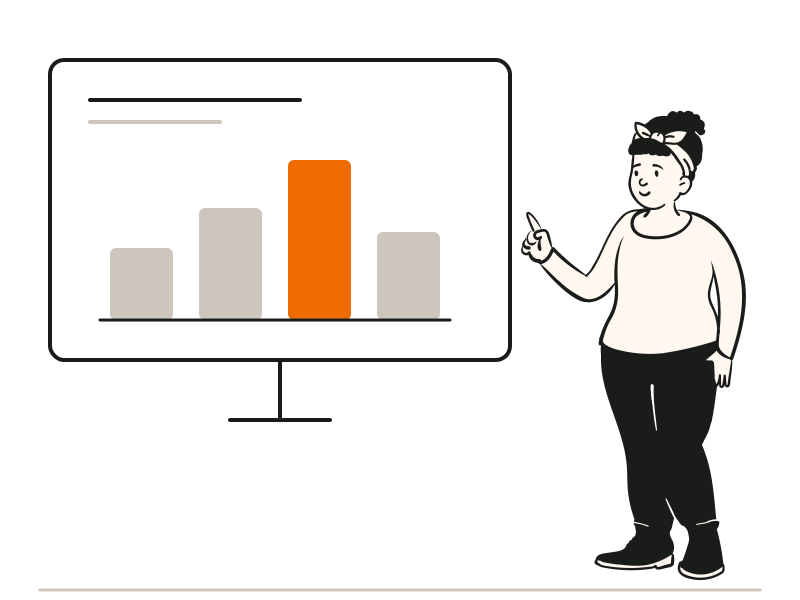
A presenter running an interactive session for a room
Quick answerUpdated 2026-09-24

How do I make a presentation interactive?

In QG Playground, build your talk as one session of content slides mixed with questions. Content slides hold text, photos and YouTube videos on a free 16:9 canvas, and you can mirror them on people's phones or keep phones on a “Look up at the screen” message. Between slides, add polls, word clouds, ratings, rankings and quiz questions. When you present, the room joins with a code or QR at qgplay.live, answers on their phones, and sees the results live on the big screen, so every few minutes the audience does something rather than just watching. Move through the session with Next and Back, arrow keys, or your phone as a remote. Leaderboards and a podium are optional, so the same interactive presentation software works for a lively quiz or a calm lecture. It runs in any browser, on a projector or over Zoom and Teams.
One session, start to finish

Build your talk as a single flow. Slides carry the story, and every few minutes the room does something.

  1. SlideYour opening
  2. PollWhat does the room think?
  3. SlidePhoto and story
  4. Word cloudOne word each
  5. QuizThree quick questions
  6. LeaderboardOptional

Content slides that carry your talk.

Arrange text, photos and YouTube videos on a free 16:9 canvas, with your own fonts, sizes, lists and colours. Videos play on the big screen.

  • Text, photos and YouTube video
  • Mirror slides on phones, or ask people to look up
  • Content slides on every plan
  • A picture above any question, too

Every few minutes, the room does something.

Drop polls, word clouds, ratings and quiz questions between slides. Results appear live, and you talk about them while they form.

  • Polls, word clouds, ratings and rankings
  • Scored quiz questions when you want energy
  • Leaderboards optional, for a calm lecture
  • Next and Back, arrow keys or a phone remote
More on live polls

Where interactive sessions work

Training sessions

Teach, check, discuss. A quick quiz after each module shows what landed.

Lectures

Keep a hall of 200 with you, and see who followed the last ten minutes.

Conference talks

A poll to open, a word cloud in the middle, a quiz to close.

Town halls

Questions and pulse checks the whole company can answer at once.

At a glance

Content slidesText, photos and YouTube video on a 16:9 canvas
InteractionsPoll, word cloud, rating, ranking, quiz questions
On phonesMirror the slide, or “Look up at the screen”
ControlNext/Back, arrow keys, phone remote (Pro Plus)
WhereProjector, TV, Zoom, Teams, Google Meet
Players needA phone or laptop browser. No app, no account

Questions people ask

Can't find it? The help centre has step-by-step answers.

Can I import my PowerPoint?
Not directly yet. Add your key slides as content slides with text and images, then add questions between them.
Can I add polls to a PowerPoint presentation?
Not inside PowerPoint itself. Rebuild the slides that matter as content slides in QG Playground and put polls between them, or keep your deck open and switch to the Playground presenter tab when it's time to vote.
Can people see the slides on their phones?
Yes, if you turn on content slides on phones in the quiz settings. Otherwise phones say “Look up at the screen”.
Do I need a leaderboard?
No. Leave leaderboards out for a calm, lecture-style session.
Is it free?
Yes. Content slides, polls and word clouds are on the Free plan, for up to 20 people per session.
Does it work on Zoom or Teams?
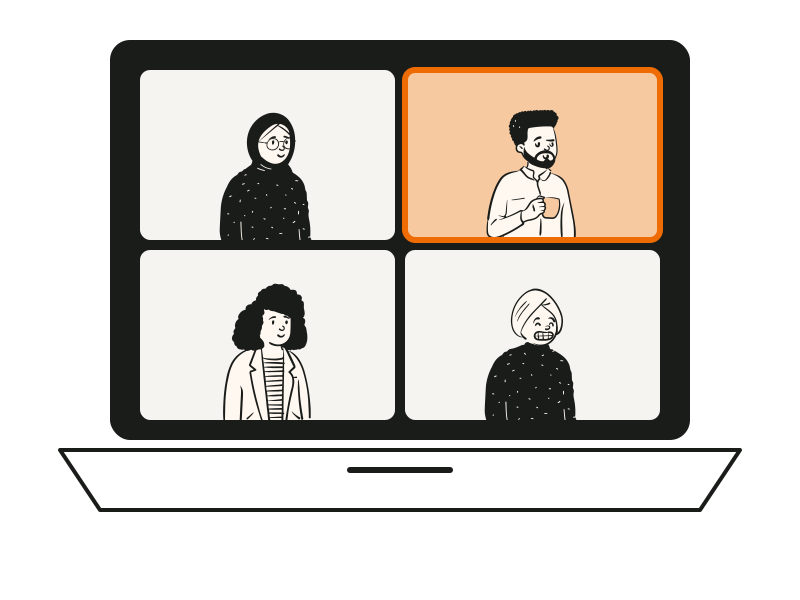
Yes. Share the presenter view in your call, and people join on their own phones or laptops.